

How to Use PandaVPN on Android TV
 Sharon
 2026.11.20
Streaming movies, watching TV shows, and enjoying online entertainment have become an essential part of the smart TV experience. However, regional content restrictions, online privacy concerns, and unstable connections can sometimes limit what you can access and enjoy.
A reliable VPN can help address these challenges by encrypting your internet traffic and allowing you to connect through servers in different regions.
PandaVPN for Android TV is designed to make your smart TV streaming experience more secure, flexible, and convenient. With advanced ECC-based security technology, a global network of more than 6,000 servers, high-speed connections, and unlimited bandwidth, PandaVPN helps Android TV users explore international content while adding an extra layer of online privacy.
Whether you want to access regional streaming libraries, protect your internet connection, or enjoy smoother online entertainment, PandaVPN offers a straightforward VPN solution for Android TV.

Why Choose PandaVPN for Android TV?
Choosing the right Android TV VPN involves more than simply finding an application that connects. Server availability, connection performance, privacy protection, and ease of use all contribute to a better streaming experience.
Here are six key features that make PandaVPN worth considering.
1. Advanced ECC Encryption for Better Online Security
When streaming or browsing online, your internet traffic travels through networks that may not always be secure. Using a VPN adds an additional layer of protection to your connection.
PandaVPN incorporates Elliptic Curve Cryptography (ECC) into its security technology. ECC provides strong cryptographic protection with relatively small key sizes, helping maintain security while supporting efficient performance.
With PandaVPN, Android TV users can benefit from encrypted VPN connections that help protect their online communications and reduce exposure to unauthorized monitoring.
Whether you’re watching online videos or accessing streaming services, PandaVPN helps create a more privacy-conscious browsing environment.
2. Access Global Content with 6,000+ Servers
One of the biggest advantages of using a VPN on Android TV is the ability to connect through servers in different regions.
PandaVPN operates a global network of more than 6,000 high-speed servers, giving users a wide selection of connection locations.
Simply open the server list, choose your preferred country or region, and connect to a suitable server.
This flexibility can help you explore regional streaming libraries on popular platforms such as:
- Netflix: Discover movies and TV shows available in different regional libraries.
- Disney+: Explore entertainment catalogs offered in supported regions.
- Hulu: Connect through an appropriate US server to access its regional content.
- BBC iPlayer: Connect through a UK server to explore available British programming.
Please note that streaming platform availability and VPN access are subject to each service’s regional restrictions and terms of use.
3. High-Speed Connections and Unlimited Bandwidth
Nobody wants buffering or interruptions in the middle of a movie.
PandaVPN is designed to provide high-speed VPN connections with unlimited bandwidth, making it suitable for extended streaming sessions and other bandwidth-intensive activities.
Its network infrastructure and optimized connection routes help support:
- 4K UHD Streaming: Enjoy high-resolution entertainment with smoother playback.
- HD Video Streaming: Watch your favorite shows with fewer interruptions when network conditions allow.
- Stable Connections: Choose from available server locations to find a suitable connection.
- Unlimited Usage: Enjoy online entertainment without worrying about a fixed monthly VPN data allowance.
Actual connection speeds depend on factors such as your internet service, server distance, network congestion, and Android TV hardware.
4. Strict No-Logs Privacy Policy
Privacy matters even when you’re simply watching television.
PandaVPN follows a strict no-logs policy, emphasizing the protection of users’ online activities and connection privacy.
By routing your internet traffic through an encrypted VPN connection, PandaVPN helps reduce the exposure of your online activity to third parties monitoring your network.
This provides an additional layer of privacy when using online streaming applications and other internet-based services on Android TV.
5. Easy-to-Use Android TV Application
A VPN for Android TV should be easy to navigate, especially when using a television remote instead of a traditional mouse or touchscreen.
PandaVPN provides a dedicated Android TV application with a straightforward interface, allowing users to manage their VPN connections directly from the television.
You can quickly:
- Launch PandaVPN from your Android TV application menu.
- Sign in to your PandaVPN account.
- Use Smart Connect to find an available server automatically.
- Browse the server list and select a preferred location.
- Connect or disconnect with a simple selection.
The intuitive interface makes managing your VPN connection convenient, even if you’re new to VPN applications.
6. 7-Day Money-Back Guarantee
Not sure whether PandaVPN is right for your streaming needs?
Every subscription comes with a 7-day money-back guarantee, allowing eligible customers to try the service and evaluate its performance.
You can explore its server network, test connection speeds, and experience its Android TV features. If the service doesn’t meet your expectations, you can request a refund according to the applicable refund policy.
How to Install PandaVPN on Android TV
Getting started with PandaVPN is simple. The application supports Android TV devices running Android 5.0 and above, subject to device and firmware compatibility.
There are two ways to install PandaVPN on your Android TV: through the Google Play Store or by manually installing the APK file.
Step 1: Download and Install PandaVPN
Option 1: Install from Google Play Store (Recommended)
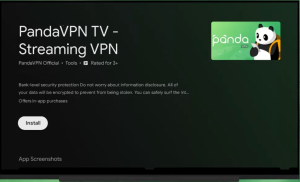
If your Android TV has access to Google Play Store, this is the easiest way to install PandaVPN.
- Turn on your Android TV and open the Google Play Store.
- Select the search icon and enter PandaVPN.
- Find the PandaVPN application in the search results.
- Select Install and wait for the download to finish.
- Once installed, open PandaVPN from your application menu.
Option 2: Install Using the APK File
If PandaVPN is unavailable in your TV’s Google Play Store, you can install it manually using the Android TV APK package.
- Visit the PandaVPN Android TV Download Page.
- Download the Android TV APK file using a computer or mobile browser. Alternatively, use the Direct APK Download Link.
- Transfer the downloaded APK file to your Android TV using a USB drive or a file-transfer application such as Send Files to TV.
- Open the APK file on your television.
- If prompted, allow installation from unknown sources for the application used to open the APK.
- Follow the on-screen instructions to complete installation.
After installation, PandaVPN will appear in your Android TV application list.
Step 2: Log In to Your PandaVPN Account
Once the installation is complete, launch PandaVPN on your Android TV.
You can sign in using either of the following methods.
Method 1: QR Code Login
QR code login is a convenient way to access your PandaVPN account without manually entering your credentials using the TV remote.
- Open PandaVPN on your Android TV.
- Find the QR code displayed on the login screen.
- Scan the QR code using your smartphone’s camera or the supported login method.
- Follow the on-screen instructions to authenticate your account.
- Once verification is complete, your Android TV application will be logged in.
Method 2: Manual Account Login
You can also enter your account information directly on your television.
- Select the manual login option.
- Use your Android TV remote to enter your PandaVPN account ID and password.
- Check that your login information is correct.
- Select the login button to access your account.
If you don’t have a PandaVPN account yet, visit the official PandaVPN pricing page to explore available subscription plans.
Step 3: Connect to a VPN Server
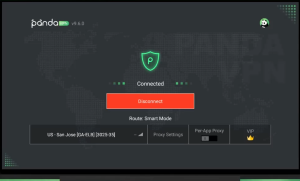
After logging in, you’re ready to connect PandaVPN on Android TV.
Follow these steps:
- Open the PandaVPN main interface.
- Select Smart Connect to automatically connect to an available server, or open the Server List to browse available locations.
- If you prefer a specific region, select a country such as the United States or the United Kingdom.
- Click Connect to establish your VPN connection.
- If Android TV displays a VPN connection permission request, select OK to authorize PandaVPN to create the VPN connection.
Wait for the connection process to finish.
When the application displays Connected, your Android TV has successfully established a VPN connection.
You can now open your preferred streaming applications and enjoy online entertainment through PandaVPN.
How to Fix PandaVPN Connection Issues on Android TV
Although installing and connecting a VPN is usually straightforward, some Android TV devices may encounter compatibility or connection problems.
One possible error message is:
“Connection failed, your device is missing a component required for VPN.”
This message may indicate that your Android TV firmware is missing the necessary system components for establishing VPN connections.
Here are some troubleshooting steps you can try.
1. Check for Android TV System Updates
An outdated system version may cause compatibility issues.
- Open your Android TV Settings.
- Navigate to System or Device Preferences.
- Find the System Update option.
- Check whether a newer firmware version is available.
- Install available updates and restart your television.
After restarting, launch PandaVPN and try connecting again.
2. Restart Your Android TV
Temporary system errors can sometimes interfere with VPN connections.
Restart your Android TV completely, wait for the system to load, and open PandaVPN again.
Then select a server and try reconnecting.
3. Check Your Internet Connection
Before troubleshooting PandaVPN further, make sure your Android TV has a working internet connection.
Try opening another online application or streaming service to confirm that your TV can access the internet normally.
If your internet connection is unstable, restart your router and try again.
4. Contact PandaVPN Support
If the connection error continues after trying these steps, your Android TV model or firmware may not support the required VPN framework components.
In this situation, contact PandaVPN support or your TV manufacturer for further assistance.
Enjoy a Better Android TV Streaming Experience with PandaVPN
A great Android TV experience is about more than just having access to your favorite entertainment. Connection quality, online privacy, and the flexibility to explore international content all matter.
With 6,000+ global servers, ECC-based security technology, high-speed connections, unlimited bandwidth, and an easy-to-use Android TV application, PandaVPN provides a convenient way to enhance your smart TV experience.
Whether you’re looking for an Android TV VPN for streaming, want to explore international content, or simply want an additional layer of online privacy, PandaVPN makes it easy to get started.
Download PandaVPN for Android TV today and discover a more flexible way to enjoy your favorite online entertainment.
Visit the Official PandaVPN Website to learn more.

Related Posts

Featured Posts